
Pixelcut AI Photo Editor
Pixelcut IncArt & Design
4.21.95K Reviews
- Version
- 0.9.62
- Installs
- 10.00M
- Age Rating
- Everyone
Screenshots
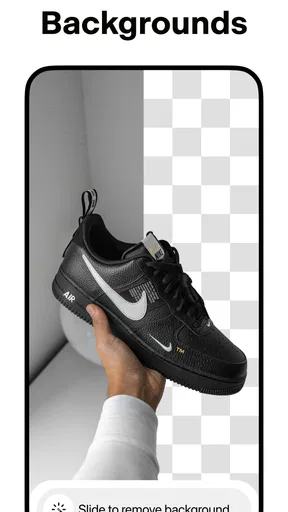



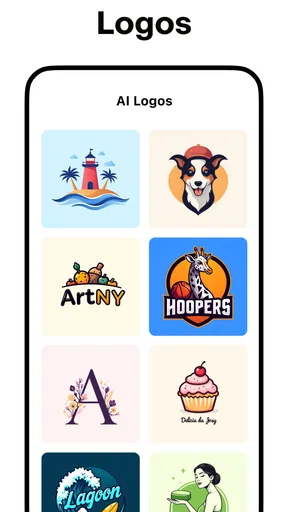
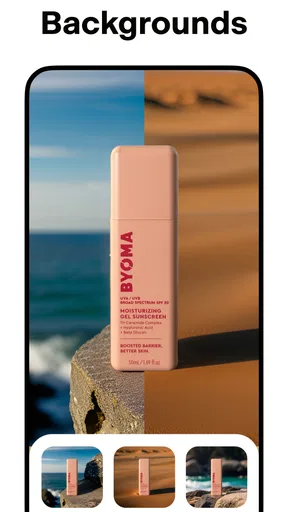
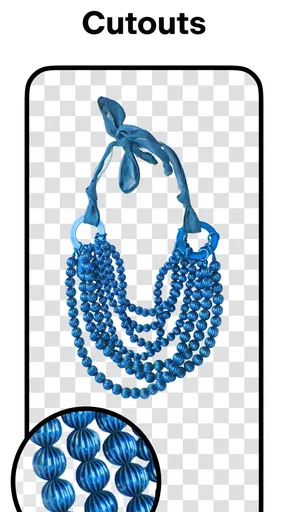
Our Review of Pixelcut AI Photo Editor
 Analysis by Appyee
When a shared phone is the place where everyone keeps photos, quick editing can be useful—and a little awkward if several people are making changes on the same device. I tried Pixelcut AI Photo Editor with that everyday household situation in mind. Its tools are aimed at making images look more polished without requiring a long editing session, but the best results still come from knowing what you want the finished picture to do.
A useful edit for the family group chat
Picture a familiar moment: someone takes a photo of a birthday cake on a busy kitchen counter, and another person wants to share it with relatives. The counter is cluttered, the lighting is uneven, and there is little time to retake the shot. Pixelcut’s background removal can help isolate the cake, while enhancement can make the image look clearer. A story template or collage can then turn the edited image into something ready to share.
That workflow is where this app makes the most sense to me: a quick, specific improvement rather than a promise to repair every flaw in a photograph. I would keep the original image and edit a copy when the picture matters. That gives the family a clean version to share while preserving the unedited photo for later, and it makes it easier to compare whether the AI edit actually improved the result.
The app is from Pixelcut Inc, and its focus is clearly practical visual work: remove an unwanted background, erase a distracting object, enhance a photo, or assemble a simple design. It is an Art & Design app, but you do not need to think of yourself as a designer to find a use for it. I see it as a handy option for household photos, small online listings, and social posts where speed matters more than detailed control.
First Impressions and Ease of Use
The first thing that caught my eye when I opened Pixelcut AI Photo Editor was its sleek and intuitive interface. You don’t have to be a tech wizard to navigate it, which is a huge plus in my book. The main screen offers a variety of options like background removal, image enhancement, and even some quirky filters that are just plain fun to mess around with.
Features that Stand Out
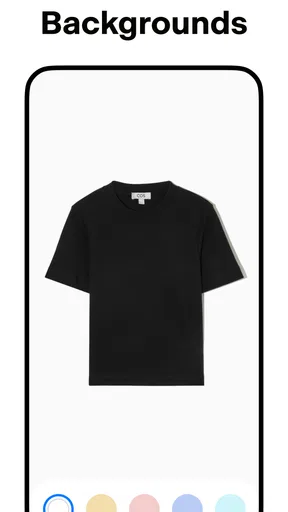
Now, let's talk features. One of the standout aspects is the AI-driven background removal. This tool is surprisingly precise and can turn any ordinary photo into something that looks like it came straight out of a professional studio. It’s perfect for creating those Instagram-worthy shots without needing a fancy camera.
For a shared-device workflow, I would use that cutout tool selectively. It tends to be most useful when the subject has a clear outline and stands apart from the background. Hair, transparent objects, overlapping items, and soft edges are harder cases for automatic selection, so I would inspect the result before sending it to anyone. A small halo or a missing edge can be easy to overlook on a phone screen but much more noticeable once the image is posted or viewed larger.
Another feature I loved is the image enhancement option. The app uses AI to automatically adjust lighting, contrast, and sharpness, making your photos pop with minimal effort. It's like having a mini Photoshop in your pocket, minus the complexity.
Automatic enhancement is convenient, but I would not apply it blindly to every image. A dim photo can benefit from a lift, while a deliberately moody shot may lose its atmosphere if it is brightened too aggressively. My practical tip is to compare the edited version with the original before deciding. If the app makes the subject clearer but also exaggerates texture or contrast, a lighter touch—or no enhancement at all—may look more natural.
For those who love adding a personal touch, the text overlay options are quite versatile. You can choose from a variety of fonts and styles, making it easy to customize your photos for social media or personal projects.
That is particularly handy for a small announcement or a product image, but text needs room to breathe. I would choose the photo first, then place only the words that help someone understand it. On a crowded background, even attractive lettering can become difficult to read; removing or simplifying the background before adding text can produce a cleaner result than trying to solve both problems with decoration.
Everyday projects and the alternatives
Pixelcut also brings together a magic eraser, story templates, and a collage maker. Those options make it more than a one-purpose cutout tool: you can tidy a picture, prepare a social graphic, and combine several images without moving immediately to a separate design app. For a shop owner photographing a handmade item, for example, a clean background can help the object stand out; for a family sharing holiday pictures, a collage can be more convenient than sending a string of separate photos.
The trade-off is that a dedicated photo editor may offer more precise manual adjustments, while a full desktop design program gives more control over layers and fine details. Pixelcut is appealing when the job is small and the result needs to be ready quickly. If I were retouching a portrait carefully, correcting complex color, or building a design with exact spacing and repeated brand elements, I would prefer a tool built for deeper hands-on editing.
The magic eraser is best treated as a cleanup aid, not a guarantee that every removed object will leave a convincing scene behind. It has an easier job when the area behind a distraction is simple; complicated patterns or objects crossing important edges can make the fill look strange. I would zoom in and inspect the repaired area, especially before using the picture in a listing where buyers may look closely.
Performance and Usability
In terms of performance, Pixelcut AI Photo Editor runs smoothly on both Android and iOS. I didn’t experience any lag or crashes, which is always a relief. The app processes edits quickly, so you won’t be stuck waiting around for your masterpiece to load.
Pixelcut is free to download, and the app is rated Everyone. Its average rating is 4.3 from around 219,000 ratings, with about 1,800 written reviews, and it has been installed over 10 million times. It was released on September 27, 2021; version 0.9.40 requires Android 7.0 or later. Those figures give a sense of its broad reach, though they do not tell me whether a particular edit will suit your taste or device.
One thing to note is that while the app is free to download, some features are locked behind a subscription. However, the free version still offers plenty to play with if you’re not ready to commit.
There are in-app purchases, listed from $2.99 to $99.99 per item, so I would check what is included in the option shown in the app before paying. A sensible way to decide is to try the free editing tools on the kind of pictures you actually make, then consider a purchase only if a locked feature solves a recurring problem. A one-off need for a single family collage is different from regularly preparing product images, and the value depends on which tools you will use often.
For a household sharing one device, it is also worth agreeing on a simple routine: each person should choose their own source photo, make edits on a copy where possible, and save finished images where the household expects to find them. I would not assume that a shared app automatically keeps each person’s work separate. If different family members use the same device, avoid treating the editor as a private archive; keep personal originals and finished work organized using the device’s usual photo-management habits.
Who is it For?
This app is perfect for anyone who loves photography but doesn’t want to spend hours editing. Whether you’re a social media influencer or just someone who loves sharing photos with friends and family, Pixelcut AI Photo Editor has something for you. The ease of use makes it accessible for beginners, while the range of features keeps it interesting for more experienced users.
I would especially recommend it to someone who often needs a quick cutout, a cleaner product shot, or a simple graphic for social media. It can also suit a household where one person handles the edits and others choose the pictures or review the finished versions. That kind of coordination does not require everyone to learn a complicated editor, but it does help to agree on which version is final before a photo gets shared widely.
It is less suitable for a person who wants detailed manual retouching, dependable restoration of difficult backgrounds, or a full professional design workflow. It is also not a reason to hand a young child unrestricted access to a shared device. The age rating is Everyone, but that label is not a substitute for a household’s own rules about photos, sharing, and purchases. An adult can help a child choose images and check the result before posting or sending it.
For someone asking whether the app works for occasional use, I think it can: its appeal is that the main tasks are approachable without a long learning curve. If you need only fine color grading or careful layer-by-layer composition, though, a more specialized editor is likely a better fit. Pixelcut’s strength is the quick path from a photo to a presentable visual, not unlimited control over every pixel.
Final Thoughts
All in all, Pixelcut AI Photo Editor is a fantastic tool for anyone looking to elevate their photography game. It combines the power of AI with a user-friendly interface, making photo editing not just easy, but genuinely enjoyable. So, if you're ready to give your photos that professional touch, this app might just be your new best friend.
My household verdict is that Pixelcut is most useful when everyone understands its role: a convenient editor for quick, shareable images, rather than a replacement for a careful photo workflow. I like that a person can remove a distracting background, improve a picture, or assemble a collage without starting from a complex design canvas. I would keep originals, check AI-generated edges, and be deliberate about purchases and sharing. Used that way, it is an approachable choice for casual creators and families who want better-looking pictures without turning every edit into a project.
Verdict
Strengths of Pixelcut AI Photo Editor
- User-friendly interface enhances editing experience.
- Wide range of AI tools for creative edits.
- Fast processing speeds improve workflow.
- Regular updates keep features fresh.
- Supports multiple file formats for versatility.
Limitations of Pixelcut AI Photo Editor
- Limited free features; premium is costly.
- In-app ads can be intrusive at times.
- Requires internet for full functionality.
- Occasional bugs disrupt smooth editing.
- Advanced tools have a learning curve.
Similar Picks in This Category
View All
Canva: AI Photo & Video Editor
Canva4.8

PENUP – Drawing-sharing SNS
Samsung Electronics Co., Ltd.4.5

Crafto
Kutumb App4.6

Sketchbook
Sketchbook4.1

ibis Paint X
ibis inc.4.5

Adobe Express: AI Photo, Video
Adobe4.6
Frequently Asked Questions
What is Pixelcut AI Photo Editor?
Pixelcut AI Photo Editor is a versatile photo editing application available for both Android and iOS platforms. It leverages advanced AI technology to enhance, edit, and transform images with ease. Users can utilize its features for tasks like background removal, photo enhancement, and creating professional-looking graphics quickly and efficiently.
Is Pixelcut AI Photo Editor free to use?
Pixelcut AI Photo Editor offers both free and premium versions. The free version provides access to basic editing tools and features, while the premium version unlocks advanced functionalities, additional filters, and special effects. Users can choose a subscription plan that suits their needs to gain full access to the app’s capabilities.
What are the key features of Pixelcut AI Photo Editor?
Pixelcut AI Photo Editor boasts a range of impressive features, including AI-powered background removal, a variety of filters and effects, text overlay tools, and customizable templates. It also offers seamless integration with social media platforms, allowing users to share their creations directly from the app. These features make it ideal for both casual users and professionals.
Can Pixelcut AI Photo Editor be used offline?
While some features of Pixelcut AI Photo Editor can be accessed offline, certain functionalities, especially those relying on AI, may require an internet connection. This is to ensure optimal performance and access to the latest updates. Users should verify which features are available offline before use, depending on their needs.
How does Pixelcut AI Photo Editor compare to other photo editing apps?
Pixelcut AI Photo Editor stands out due to its user-friendly interface and powerful AI capabilities. It offers a seamless blend of simplicity and advanced features, making it suitable for beginners and professionals alike. Compared to other apps, Pixelcut provides unique tools like AI background removal, which can significantly speed up the editing process.
